
Web apps are usually architected and built in layers. The browser is the foundation, often with a framework like React or Lit above that, followed by the company’s shared libraries and design system, and finally the product team’s own code is at the very top.
The browser has one main thread for running JavaScript, responding to user events and drawing the screen, so the less work the lower layers do, the more of it is left for the app. If a design system’s equivalent of a <select> dropdown takes a second to open and display its options, it’s not going to be any faster in the apps that use it, however well their teams write the rest of their code. If the design system team takes the time to make that faster, it unlocks better performance for all the apps built with the design system at once, and for everyone using them.
I know that design system teams already think this way about accessibility. Using a well-built design system’s button component gives you the correct keyboard support and ARIA roles out of the box, and many design system teams rightfully check their components for accessibility thoroughly before each release.
For some teams, though, performance doesn’t always get the same attention. Components usually get tested in isolation with just a few items, nothing intense enough for the cracks to show. They start to slow down once a real app gives them much more to do. The team building that app can feel the page is slow, but because that comes from the design system, they can’t easily fix it themselves.
I feel that performance belongs on the design system team’s priority list, next to accessibility. That means testing each component with demanding but realistic amounts of data before it’s released, and making sure its performance doesn’t get quietly worse over time.
“Performance belongs on the design system team’s priority list, next to accessibility.”
I’m eternally curious, so I took it upon myself to conduct a bit of testing. I wanted to see how some of the most popular open-source design systems fared on performance. I deliberately chose ones built on different frameworks, as I was interested in whether certain frameworks would turn out to affect performance more than others.
Here are the ten I picked, with the versions I tested in October 2026:
- Mantine 9.7.1, built with React
- Ant Design 6.6.5, built with React
- Material UI 9.5.0, built with React
- React Spectrum 3.47.6, built with React
- Carbon 2.65.0, web components built with Lit
- Fluent 3.1.3, web components built with FAST, Microsoft’s web component library
- Web Awesome 3.14.0, web components built with Lit
- UI5 2.27.2, web components built with SAP’s own in-house framework
- Spectrum Web Components 1.12.4, web components built with Lit
- Ionic 9.0.7, web components built with Stencil
I left out some popular design systems that weren’t actively being developed any more, for a fairer comparison. Also, React Spectrum and Spectrum Web Components obviously share the same design language, but they’re separate libraries with their own code so I wanted to see whether they’d perform the same.
The first thing I did was to look through each of their codebases to see if they had any automated performance tests. Only Spectrum Web Components seemed to. It runs a benchmark for each of its components every time a pull request is created. Fluent also has a benchmark for each of its components, but I couldn’t see them running automatically anywhere. The others didn’t appear to test for performance on a component level at all. Ant Design, Material UI and Fluent do check their bundle size. That’s usually what design system teams measure when they consider performance, and it’s definitely important as it affects page load time, but it doesn’t relate to how quickly a component actually responds on the page.
I then picked two fairly intensive tasks that real web apps do often and I timed each design system on those. The first was opening a country selector with all 249 countries from the ISO list, like the ones you get on checkout and sign-up forms. The second was selecting 100 checkboxes at once, just like clicking a “select all” checkbox above a list of 100 messages in a webmail app. I realize these two tasks aren’t an extensive review of performance across an entire design system, but they’re where components often get slow, so they’re a good place to start.
Before we get to the results, I want to make clear that all of the design systems I tested are well built and are widely used, and they’re written by expert engineers who I respect. The point of this research isn’t to rank them or offer criticism, but to use them as examples to encourage us all to prioritize performance in our design systems. And for any problems I uncover, I’ll suggest a fix, the way I would in any manual code review.
I ran these tests with production builds of each design system, using Chrome v155 on my M1 Pro MacBook Pro. A script clicked the country selector or checked all the checkboxes, then measured how long the browser’s main thread stayed busy afterwards, including any animation, and that’s the time shown in the tables. The script slowed the CPU down by 4x, the same as the throttling setting in the Performance panel of Chrome’s developer tools, which I always recommend when developing, because it’s closer to how real users’ devices perform. To avoid any spurious results, I ran each test three times and took the median values.
I also measured the longest time the UI stopped responding during each task. That happens when the main thread is blocked, because the browser can’t update the screen or respond to user events, so the page appears to have locked up. Chrome only tells you about frames that take longer than 50ms to draw, so I’ve put “Under 50ms” in the tables wherever it didn’t report any.
I’ve put the tests into a design-system-performance-tests repo on GitHub, by the way, in case you want to run them yourself.
On to the results, and here’s how long each design system took to open the country selector, from fastest to slowest:
| Design system | Framework | Time to open | Longest time unresponsive |
|---|---|---|---|
| Fluent | FAST | 61ms | 52ms |
| Carbon | Lit | 63ms | Under 50ms |
| Mantine | React | 84ms | 63ms |
| Ant Design | React | 134ms | 69ms |
| Web Awesome | Lit | 137ms | 82ms |
| UI5 | SAP’s own | 157ms | 106ms |
| Spectrum Web Components | Lit | 165ms | 78ms |
| Material UI | React | 208ms | 181ms |
| React Spectrum | React | 227ms | 162ms |
| Ionic | Stencil | 1,266ms | 1,133ms |
The country selectors in Fluent and Carbon opened faster than any of the others. Ionic’s was by far the slowest, taking more than five times as long to open as the next slowest, React Spectrum.
To see how the time to open changes as the list gets longer, I opened the country selectors in Ionic and Fluent again with just 50 options. Ionic’s took 203ms with 50 options, but over 1.2 seconds with all 249, and for most of that time the UI stopped responding. Fluent’s barely changed, going from 41ms to 61ms.
Now, here’s how long each design system took to select all 100 checkboxes:
| Design system | Framework | Time to select | Longest time unresponsive |
|---|---|---|---|
| Fluent | FAST | 29ms | Under 50ms |
| Carbon | Lit | 41ms | Under 50ms |
| Material UI | React | 70ms | Under 50ms |
| UI5 | SAP’s own | 70ms | Under 50ms |
| Ionic | Stencil | 104ms | Under 50ms |
| Web Awesome | Lit | 148ms | Under 50ms |
| Spectrum Web Components | Lit | 158ms | Under 50ms |
| Mantine | React | 227ms | 71ms |
| React Spectrum | React | 298ms | 53ms |
| Ant Design | React | 421ms | 78ms |
Ant Design took six times as long as Material UI, even though both are built with React.
Selecting the checkboxes didn’t stop the UI responding for any noticeable length of time in any of the design systems, which is encouraging. The longest it stopped responding for was 78ms, which is about five frames the browser skipped drawing at 60fps, far shorter than the slowest country selectors.
Both sets of results showed that a design system’s performance didn’t depend on its framework by itself. Carbon, Web Awesome and Spectrum Web Components are all built with Lit, but the country selector in Spectrum Web Components took more than twice as long to open as the one in Carbon. And Ionic had the slowest country selector of all those I tested, but its checkboxes were faster than most of the others, so the same design system can be slow at one task and fairly quick at the other.
I didn’t want to leave my testing there without trying to find out the reason for the differences between the results, so I did some profiling on the slowest ones. With the CPU still throttled by 4x, I opened the Performance panel, pressed its Record button, opened the country selector or selected all the checkboxes, and then stopped the recording. The Summary tab at the bottom of the panel shows how the main thread’s time gets split between Scripting, which is JavaScript execution, Rendering, which covers calculating styles and layout, and Painting, which is preparing what to draw on the screen. The “Bottom-Up” tab lists the JavaScript functions that ran, sorted by how long they took, and you can click on a function’s file name to open its source code in the Sources panel and see what it was executing.
Going back to Ionic’s results from earlier, its country selector took more than six times as long to open with five times as many options. If each option took the same amount of time to add, it would take about five times as long, or a little less in practice, since showing the dropdown itself takes the same amount of time no matter how many options it has. That means each new option must take longer to add than the last one before it.
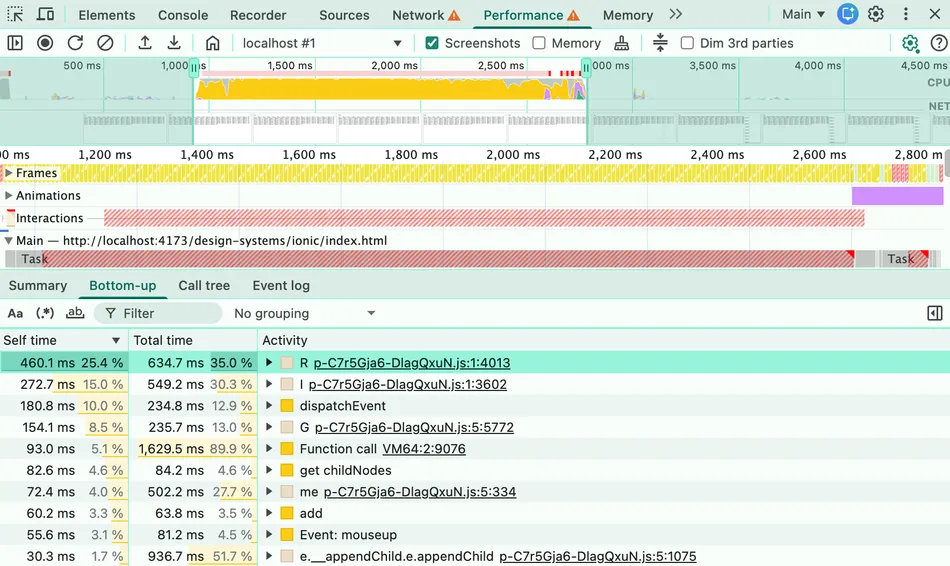
In the Bottom-Up tab for Ionic’s country selector, shown in Figure 1, most of the top rows were functions with minified names, all from the same file. That file also had its own version of appendChild, a method the browser normally provides, and running that version took up about half of the time the country selector needed to open. Clicking into those functions, I could see the file contained Stencil’s framework runtime. The {} button at the bottom of the Sources panel formats minified code so it’s easier to read, and when I compared it with Stencil’s source code on GitHub, I could see that these functions were part of Stencil’s handling of slots. A slot is a placeholder inside a web component that marks where the elements you put inside it are shown, such as the options inside a dropdown. Other design systems built with Stencil might have the same problem.
In Ionic’s country selector, each option is a radio button, and they’re all inside a radio group, ion-radio-group, which makes sure only one of them can be chosen at a time. Slots are normally handled by the browser, through shadow DOM, which is the feature that gives a web component its own private set of elements, separate from the rest of the page. ion-radio-group doesn’t use shadow DOM, though, so Stencil handles the slots instead. It replaces the radio group’s appendChild and insertBefore methods with its own versions that work out where each new option should go. To do that, it checks all the options already in the radio group to find the right slot, then checks them all again to work out where the new one should go. Adding the 249th option means checking the 248 options before it, twice, while adding the 10th only means checking the 9 before it, which is why each new option takes longer to add than the last one.
The setting that replaces appendChild is called appendChildSlotFix, and Ionic enables it through another setting, experimentalSlotFixes, which turns on all of Stencil’s fixes for slots in components that don’t use shadow DOM, including that one. So the delay comes from that setting together with a radio group that doesn’t use shadow DOM, rather than from Stencil being slow in general. Both settings are false by default today, but Stencil’s documentation say they’re meant to become true by default in the upcoming v5 release. If that ships as it is, any component that uses slots without shadow DOM will slow down the same way Ionic’s dropdown does, because Stencil will check all of its existing children each time a new one is added.
Ionic could fix its dropdown by making ion-radio-group use shadow DOM, so the browser handles the slots instead of Stencil, and the browser’s normal appendChild function would then be used. That fixes Ionic’s dropdown for all the apps that use it, though it would change how apps can style the radio group, so it would probably need to wait for a major release to do so. Or Stencil could fix it by remembering each child’s slot, instead of searching for it each time an option is added. That would then fix the same problem in any Stencil-based design system that uses slots without shadow DOM. I’ve raised this with both the Ionic team and the Stencil team.
I ran document.querySelectorAll("*").length in the Console before and after opening Material UI’s country selector, and the count went up by about 250 elements, one for each option, as soon as its dropdown opened. I ran the same check on Ant Design’s country selector, and the count only went up by about 40. Ant Design’s country selector renders just the options that fit in its dropdown, and renders more as you scroll, which is a form of virtualization. That’s why it opened noticeably faster than the one in Material UI.
Virtualization works for long menus and tables too, but it needs care with keyboard navigation and screen readers, because only the options or rows that fit on screen are actually in the DOM. Ant Design’s dropdown is a good example to learn from here. As well as the options you can see, it keeps a hidden copy of the highlighted option in the DOM, so screen readers can still announce it.
In the Summary tab, I noticed that Rendering made up about half of the time UI5’s country selector took to open, and Scripting made up much less. So the delay was mostly coming from the browser working out styles and layout, not from executing UI5’s JavaScript functions. In the Elements panel, all 249 options are already in the DOM before the dropdown opens, inside a hidden popover. The browser doesn’t work out styles for elements that are hidden, so when the popover opens, the browser has to style all of them at once. That’s about 1,500 elements, because each of the 249 options has its own shadow DOM with more elements inside. Virtualizing the list, the way Ant Design does, would give the browser far fewer elements to style.
React Spectrum’s country selector uses virtualization too, but it was still the second slowest to open, after Ionic’s. I opened it with half as many options, and it took about the same amount of time, so the length of the list wasn’t what made it slow. I profiled it, and near the top of the Bottom-Up tab was a browser function, checkVisibility, called from React Aria, the library React Spectrum is built on. In React Aria’s source code, I found that every time the country selector opens, React Aria goes through the visible options one by one. For each one, it checks that the option is visible, clears its height, and then reads its size, and the browser has to work out the layout of the page again for each of those checks. This is known as layout thrashing. All of that happens straight after the user clicks the country selector, and the UI stops responding until it’s finished. React Aria could clear the heights of all the options first, and then check and measure them all, so the browser only has to work out the layout once instead of again for every option. I’ve raised an issue with the React Aria team about this.
I profiled Ant Design’s checkboxes as all 100 were selected, and executing JavaScript made up less than a third of the time it took to select them all. The rest was the browser calculating styles and drawing each checkbox’s animation, 100 times over. I turned the checkboxes’ animations off on the test page, with a CSS rule that sets their transitions and animations to none, and selecting all the checkboxes then took less than a third as long. Almost all of the style and drawing work went away, and so did some of the JavaScript, which was tied to the animations. The animation helps when someone checks one box, but users don’t need to watch 100 checkboxes animate at the same time. Ant Design could fix this by only animating a checkbox when someone selects it directly, or the code behind a “select all” checkbox could turn the animations off before checking all the other checkboxes.
“Users don’t need to watch 100 checkboxes animate at the same time.”
None of this means a design system has to give up its animations, because they can be changed to be less demanding for the main thread. The Elements panel shows that Ant Design’s checkbox styles fade the checkbox’s background and border colors, which the browser has to repaint on the main thread for every frame. Fading the opacity of a filled layer gives the same effect, and the browser can run that on the compositor thread instead. That’s a separate thread that puts together the parts of the page the main thread has already drawn, so it can fade them by itself and keep the animation running even while the main thread is busy.
I found these problems by profiling, but each one could have made a performance test fail before the component was released. Most component tests render one copy of the component with a few props, which shows it works, but not how fast it is with 249 options in a country selector or 100 checkboxes being checked at once. In a performance test, you set the component up the way a real app would use it, and then time how long the page takes to respond when you interact with it.
Listing 1, below, introduces Playwright performance tests for the country selector, using a fake design system I made up called Nettle. The repo runs the same tests on each of the ten design systems I tested, along with a test that checks all 100 checkboxes at once. The test page renders the country selector with the number of countries set in its URL, such as ?n=249. In each test, Playwright clicks the country selector to open it and measures how long the browser’s main thread stays busy afterwards, along with the longest time the UI stopped responding.
import { test, expect } from "@playwright/test";

async function busy(cdp) {
  const { metrics } = await cdp.send("Performance.getMetrics");
  return metrics.find((m) => m.name === "TaskDuration").value * 1000;
}

async function openSelect(page, options) {
  await page.goto(`/test/country-select.html?n=${options}`);
  const cdp = await page.context().newCDPSession(page);
  await cdp.send("Performance.enable");
  await cdp.send("Emulation.setCPUThrottlingRate", { rate: 4 });
  await page.evaluate(() => {
    window.slowFrames = [0];
    new PerformanceObserver((list) => {
      for (const frame of list.getEntries()) {
        window.slowFrames.push(frame.duration);
      }
    }).observe({ type: "long-animation-frame" });
  });

  const before = await busy(cdp);
  await page.click("nettle-select");
  await page.waitForTimeout(2000); // time to open and finish animating
  return {
    ms: (await busy(cdp)) - before,
    longestBlock: await page.evaluate(() => Math.max(...window.slowFrames)),
  };
}

test("the country selector opens quickly", async ({ page }) => {
  const { ms, longestBlock } = await openSelect(page, 249);
  expect(ms).toBeLessThan(300);
  expect(longestBlock).toBeLessThan(100);
});

test("the time to open grows in step with the options", async ({ page }) => {
  const full = await openSelect(page, 250);
  const half = await openSelect(page, 125);
  expect(full.ms / half.ms).toBeLessThan(2.5);
});
The busy function in Listing 1 returns Chrome’s TaskDuration metric, which is a running total of how long the main thread has been busy. If you subtract the total before the click from the total after it, you get the time for everything that happened as a result, including JavaScript execution, rendering and painting to the screen. I ran both tests with the CPU slowed down four times, the same as for the tables above. In my testing, Ionic’s country selector was the only one to go over the first test’s 300ms limit with all 249 options.
One long pause that locks up the UI feels worse to a user than several short ones, even when they add up to the same total time. The country selectors in Spectrum Web Components and UI5, for example, took almost the same total time to open, but the one in Spectrum Web Components opened in several smaller steps, so the page only locked up briefly each time. UI5’s one had to style all of its options at once, so the page locked up for longer. That’s why the first test also uses the Long Animation Frames (LoAF) API, which reports any frame that takes over 50ms to draw, so the test can fail if one of them takes 100ms or more. With all 249 options, the country selectors in Ionic, Material UI, React Spectrum and UI5 failed that check, and Ionic’s failed it even with just 50 options.
Each limit in these tests is a performance budget, which is the most time something is allowed to take before the test fails. I picked 100ms as the budget for how long the UI can stop responding, because that’s roughly where a response stops feeling instantaneous. In the first test, I gave the total time a higher budget of 300ms, because the test waits for the dropdown to finish animating open, so the total also includes drawing each frame of that animation. You can set your own budgets by running the tests on your components now and setting each one a little above the result, so the tests fail if a later change makes a component slower.
The second test in Listing 1 opens the country selector with 250 options, rounded up from 249 so it halves evenly, and then with half as many, the same kind of comparison I made with Ionic’s results earlier. The full list should take no more than about twice as long to open as the half list, so the test fails if it takes much longer than that, with a little room to allow for the times varying from run to run. Every country selector except Ionic’s passed easily, taking well under twice as long with the full list, while Ionic’s took nearly three times as long and failed. If I could only choose one test to run, it would be this one, because it fails when each option takes longer to add than the last one, and you don’t need to change its budget for machines with different specs.
After I’d written these tests, I found that Spectrum Web Components already has an automated test for a country selector just like mine, with all 249 countries. But that test only times how long the closed dropdown takes to render on the page, while this one times how long it takes to open when someone clicks it.
The same ideas work for other components too. You can adapt the country selector tests for anything that shows a long list, like a menu or a table, and the checkbox test for anything that appears many times on a page, like icons or buttons. If you run these tests automatically on every pull request, with something like GitHub Actions, you’ll know straight away when a change affects a component’s performance.
To try the tests on your own design system, you can copy one of the folders in the repo and change it to use your components. The README explains how, and the repo also has a GitHub Actions workflow ready to use.
git clone https://github.com/denodell/design-system-performance-testsApart from testing, I think the most useful thing you can do is make the fast behavior the default. A dropdown can switch to virtualization once its list gets long enough to go over its performance budget, and a checkbox might only animate when someone selects it directly, as I suggested for Ant Design. App teams then get the fast version without having to know the problem ever existed.
“Make the fast behavior the default.”
You can also write in your design system’s documentation how many items each component has been tested with, such as “the dropdown is tested with up to 500 options, and above that an autocomplete is a better fit”. To work out how many options to specify there, you can keep running the tests with more options until the dropdown goes over its performance budget. Once that limit is documented, app teams know how far they can push a component before it gets slow, and you know how many items your tests need to cover.
Pages in real apps that use lots of your components are the best indicator of what to fix next, because they show how your components are really used. If you ask app teams now and then to record a profile in the DevTools Performance panel while they use those pages, and send it to you, you can see which of your components might be impacting performance. In React’s development builds, those profiles include a Components track, which is a row in the Performance panel’s timeline showing how long each component took to render. Profiling builds only show it for the parts of the app wrapped in React’s <Profiler> component. Web components don’t get a track like that, but I’ll cover a solution to that in a follow-up post.
Each time you release a performance fix, your release notes can give the before and after measurements, such as “the dropdown now opens in 150ms with 500 options, down from 300ms”. App teams can then see exactly what got faster and check the difference in their own apps, the same way a line like “screen readers now announce the selected option” tells them what’s improved for accessibility.
A design system is a foundation for the apps built with it, just like the browser is. Browser makers measure performance before every release, and it’s worth doing the same with your design system. This is the idea behind Fast by Default: building performance in from the start, instead of fixing it after users complain.
My new book, Fast by Default: Practical Performance Engineering, takes this approach further, for backend and mobile code as well as the web, and explains more about how to set performance budgets and check them on every pull request. It’s in early access from Manning now.